The Avidon Health platform includes a recommendations engine that surfaces relevant content for each member based on their individual data. The system uses data collected from the Health Age Predictor (HAP) to automatically assign recommended content — such as courses, habit builders, and articles — based on a member's health habits, readiness for change, and demographic information. If a portal has the Health Age Predictor toggled to on (located in the General section of the admin), the tile is presented on the default dashboard to new members and the component is available in pages for custom use.
Clients can extend this system by creating custom Recommendation Rules. Custom rules allow you to incorporate your own content into the recommendation engine and define the conditions under which that content is recommended to members.
Creating Recommendations
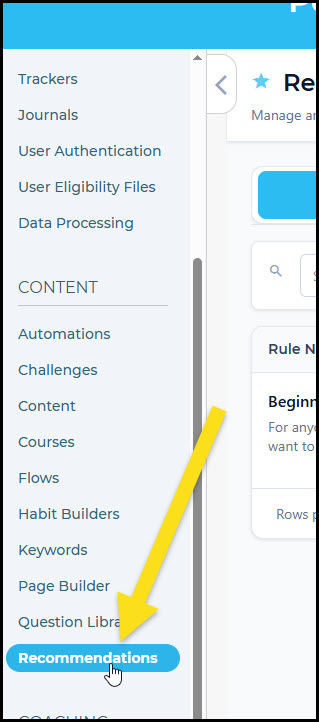
To create custom recommendations for your portal, go to the Portal Management section of the admin and select "Recommendations" from the menu:
From here, you can create recommendations by creating rules. To create a recommendation rule, click the "Add Rule" button:
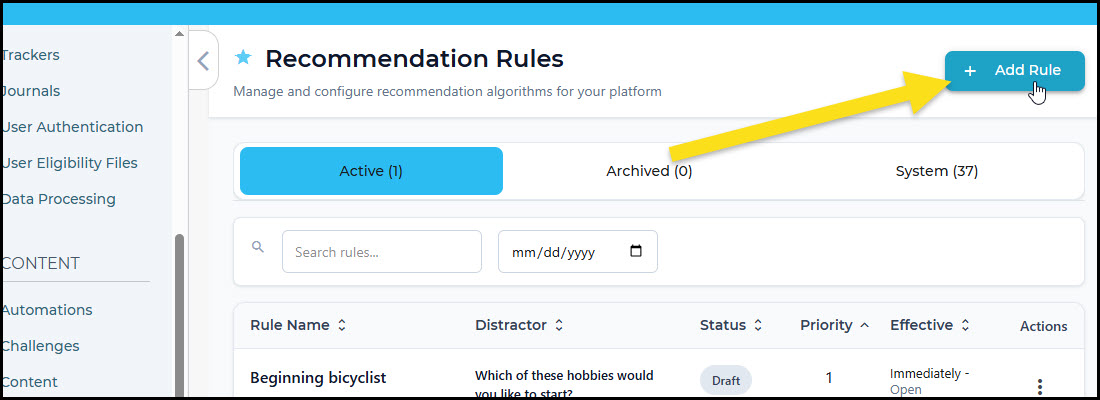
On this screen, you can define the new rule using system or portal questions (created in the Question Library: see this article for more details).
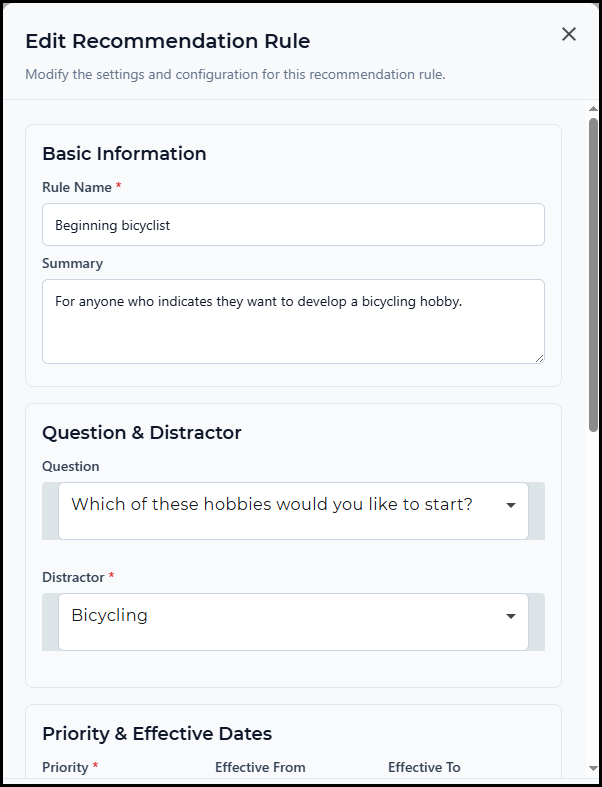
Basic Information
- Rule Name — A descriptive name for the rule
- Summary — An optional description of what the rule does
Question & Distractor
- Question — The question that triggers this rule
- Distractor — The specific answer to that question that triggers this rule. For example, if the question is "What new hobby would you like to start?" you might select "Bicycling" as the distractor.
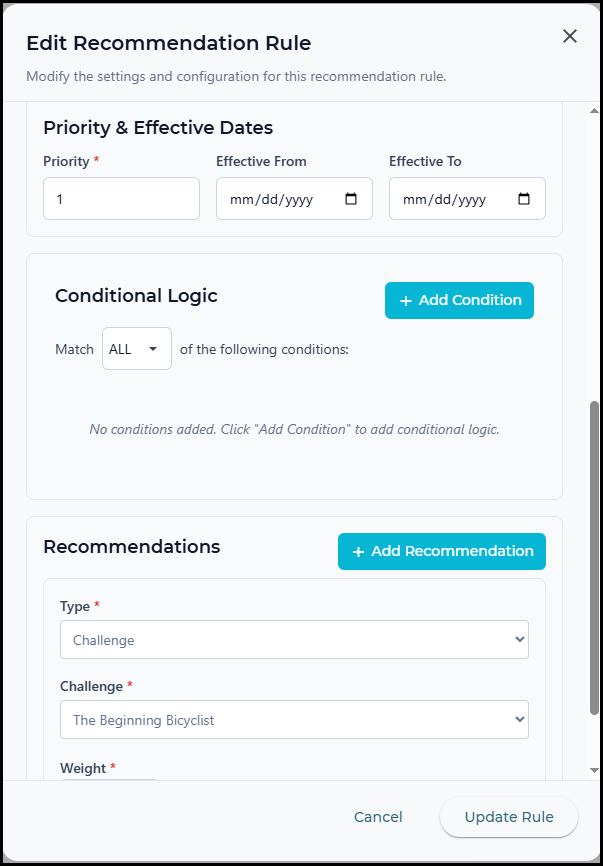
Priority & Effective Dates
- Priority — Determines the order in which rules are evaluated when multiple rules apply
- Effective From / Effective To — Optional date range during which the rule is active. Useful for time-limited programs or seasonal campaigns
Conditional Logic
Optionally, add one or more conditions to further refine when the rule applies — for example, limiting a rule to members within a certain age range or demographic group.
Recommendations
Add one or more content items to recommend when the rule is triggered:
- Type — The type of content to recommend (e.g., Course, Habit Builder, Article)
- Content — The specific content item to recommend
- Weight — A numeric value (default: 50) representing how strongly this content should be recommended. Higher weights increase the likelihood that content appears as the Top Recommendation
You can add multiple content items to a single rule using the + Add Recommendation button.
In this example below, you can see that a rule has been set up based on a custom question in the portal: Which of these hobbies would you like to start?
This new rule creates a recommendation for a custom challenge in the portal called "The Beginning Bicyclist" for anyone who answers the question with "Bicycling." There is no conditional logic and no parameter of priority/effective dates, so this rule will be applied to anyone in the portal.
 |
 |
Was this article helpful?
That’s Great!
Thank you for your feedback
Sorry! We couldn't be helpful
Thank you for your feedback
Feedback sent
We appreciate your effort and will try to fix the article