The Question Library is a centralized tool for creating, editing, and managing questions used throughout the Avidon platform. It helps admins maintain a single source of truth for reusable questions, ensuring consistency across Flows, Challenges, Programs, and other content types.
By managing questions in one place, admins can streamline updates, track member responses, and analyze engagement trends.
The Question Library is accessible and functionally relevant in three main areas of the admin portal.
Section 1: To create, edit, and organize questions in the library: The Editor Management Tool
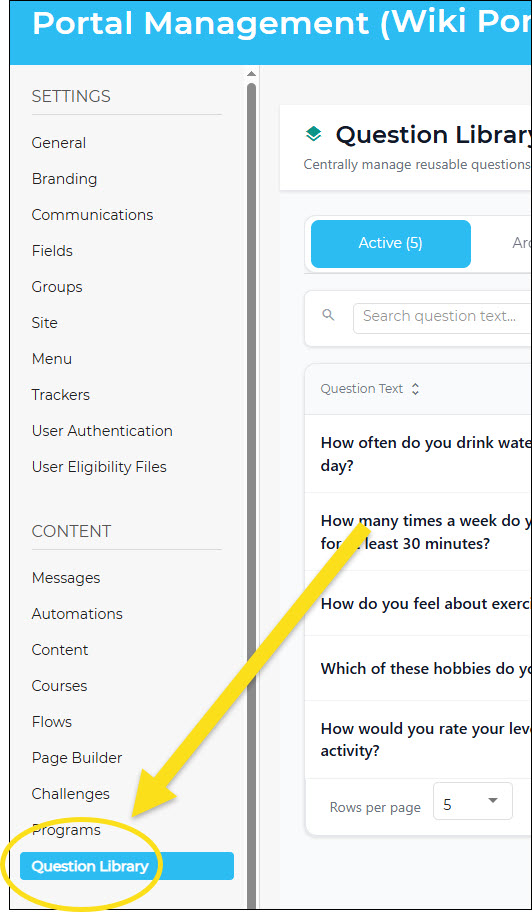
In the admin, go to the Settings section, choose the portal you want to manage, then select Question Library in the CONTENT menu.
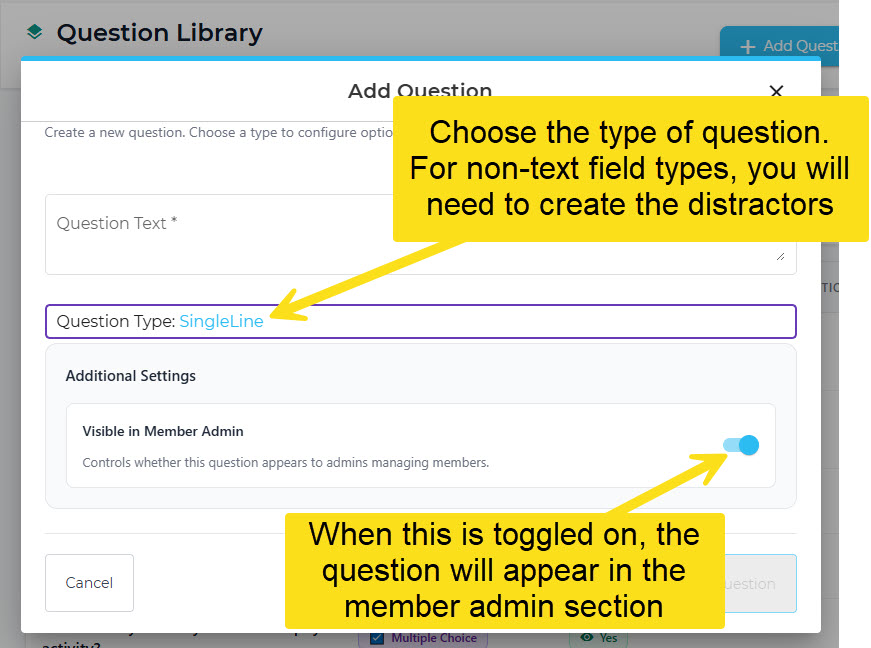
From here, you can create new questions and edit existing ones. To create a new question, click on the Add Question button, then fill in the fields that define the question and the distractors (only needed for non-text field question types, like multiple choice):
Finding Specific Questions in the Library and Editing
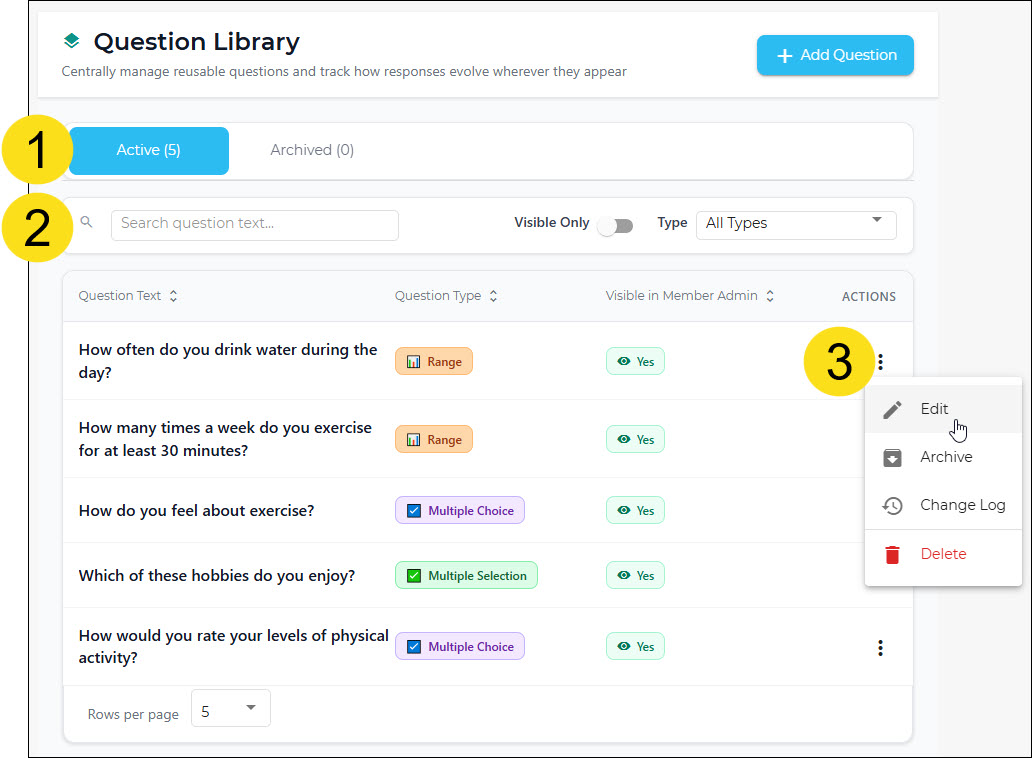
- Filter your search for questions by choosing Active or Archived.
- Filter further by entering text, searching by visibility status, and by question type.
- Click the Action menu and edit, archive, view a history of edits, or delete.
Section 2: To view individual member responses and history with questions from the library: The Member Section
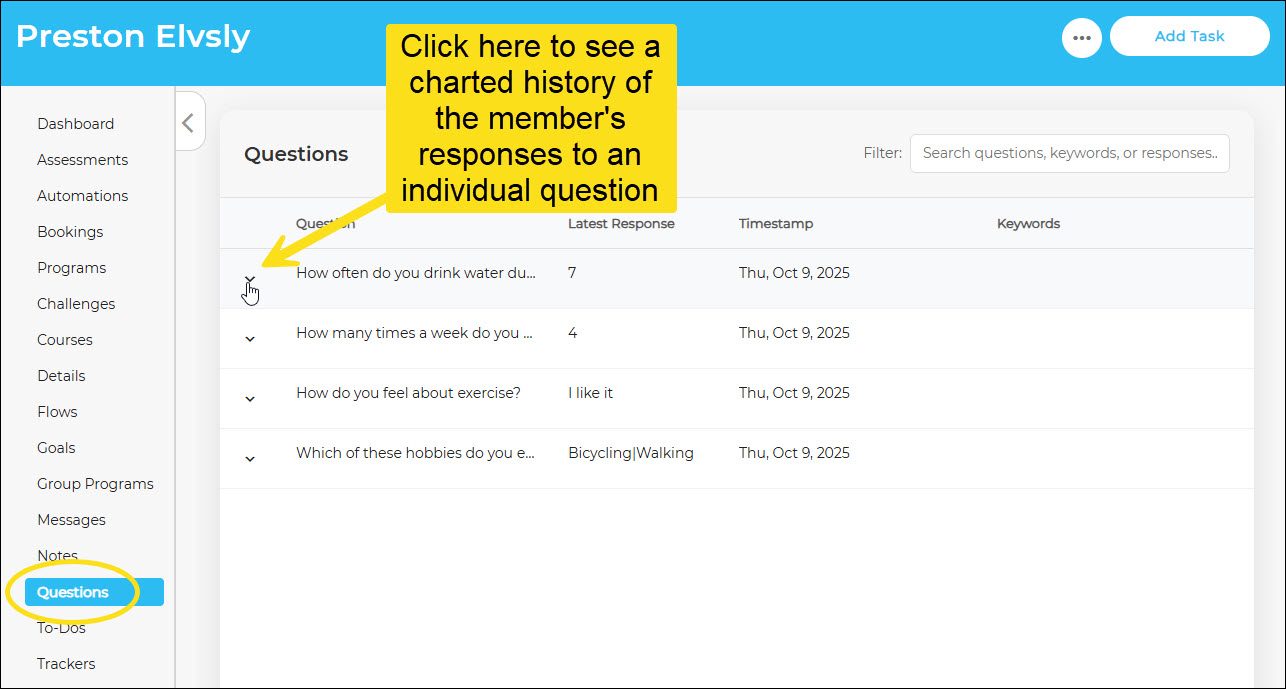
Each member record now a Questions tab in which you can view the member's response history to specific questions. To access, find the member account in the admin and click the Questions option from the left-hand menu.
Section 3: To view data related to questions from the library by filtered categories within a portal or group: The Reports Section
You can view aggregate response data for all question library questions using the Question Library Report. This report can help you identify trends and general performance across your entire population.
To access the report, go to the reports section of the admin. Click on the Content tile and then choose Question Library Report.
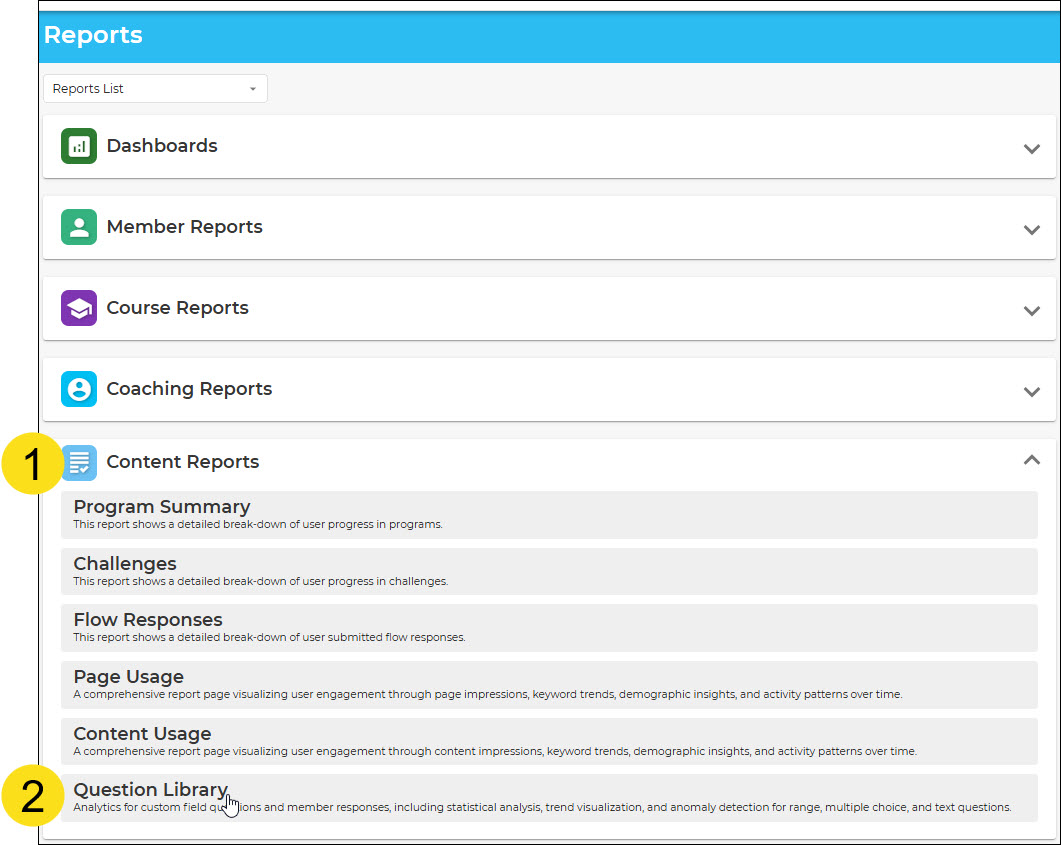
Once you are in the report, you can set the date and filter parameters to view data for:
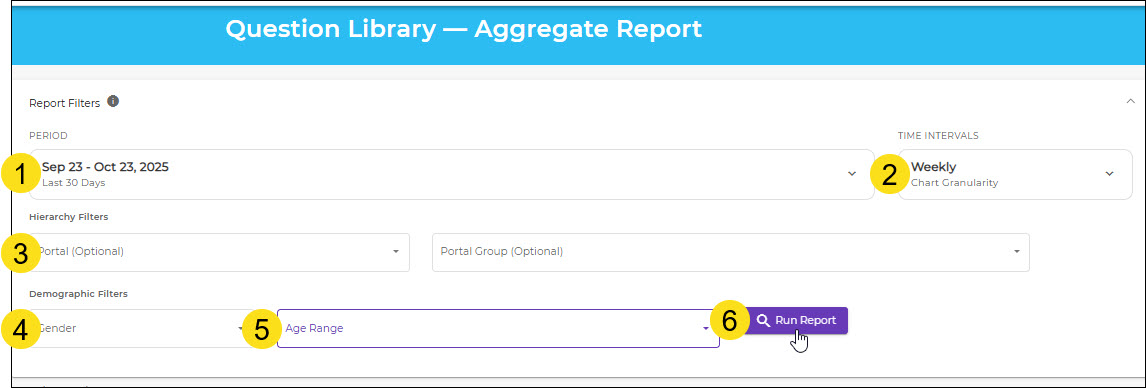
- Set the date range
- Choose the intervals for which data is charted (by day, week, or month)
- Choose a specific portal and group (optional) or run the report for all portals
- Filter by gender (optional)
- Filter by age range (optional)
- Run the report
Was this article helpful?
That’s Great!
Thank you for your feedback
Sorry! We couldn't be helpful
Thank you for your feedback
Feedback sent
We appreciate your effort and will try to fix the article