Some clients need to direct users to specific courses within their portal. While there is no way to directly assign a course to a user, you can use the "to-do" and "flow" tools to create the same outcome. This article explains how to:
- Create a flow that includes a redirect to a specific course; and,
- assign the flow to a user, directing them to the course.
Creating the Flow
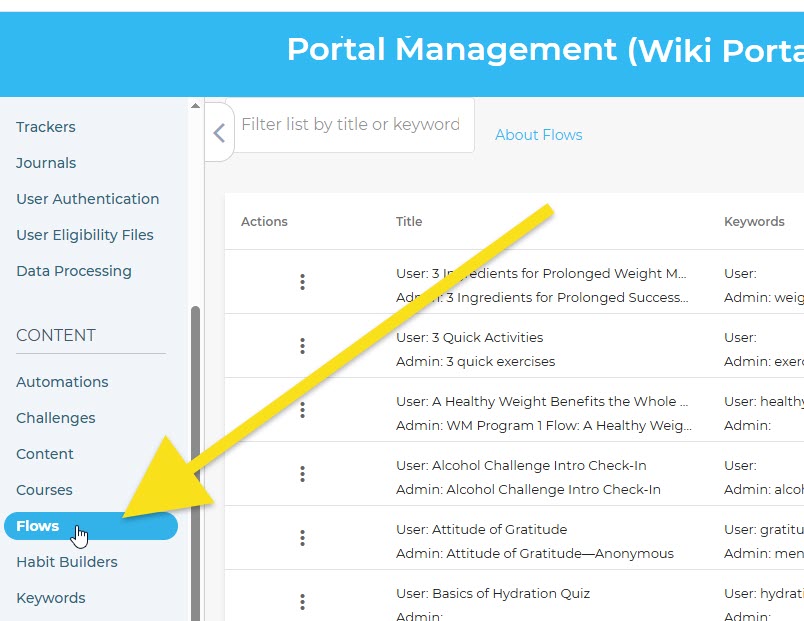
To create the flow, go to the Flows (1) option in the Portal Management section of the admin and click on CREATE (2):
Select Blank Flow from the catalog and click CREATE, and you'll be delivered to the flow editor and a blank canvas.
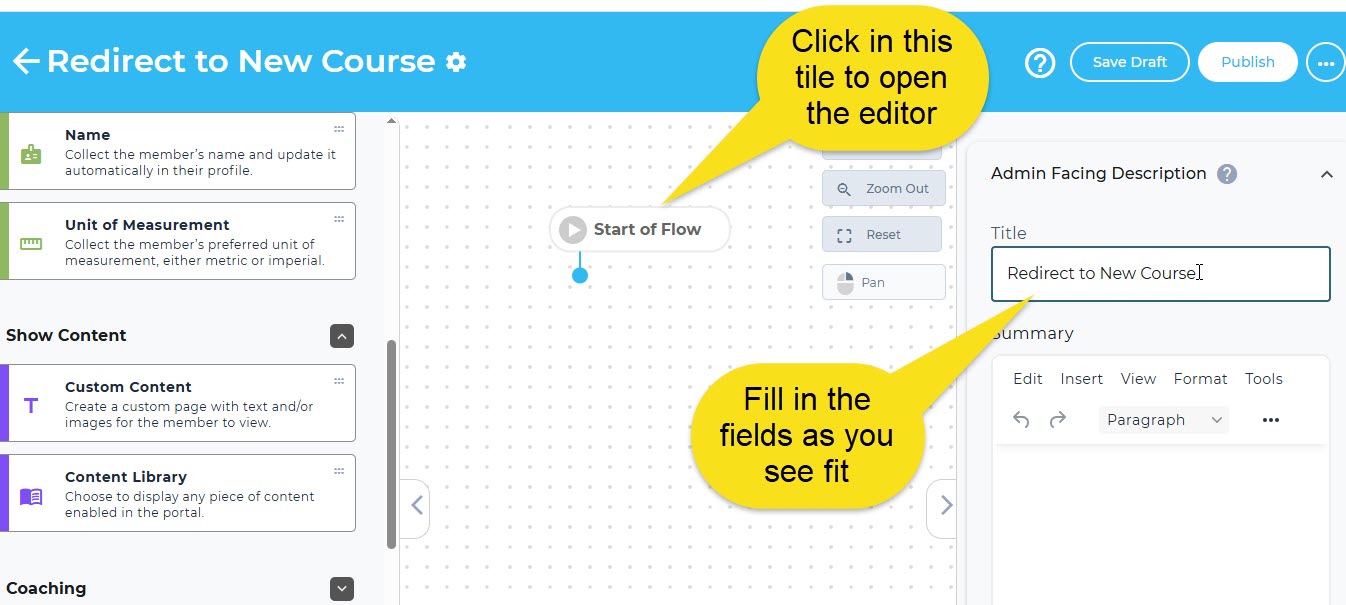
From here, you can set the description fields as you see fit by clicking the "Start of Flow" tile, which opens the fields on the right:
Now you can populate the flow with whatever components you choose. You can create custom messaging using the "Page" component, ask questions, or add library content, as examples. To create the direction to the course, drag and drop the "Redirect" component into the field (located in the Miscellaneous section), connect it to the "Start of Flow" tile, and select the course:
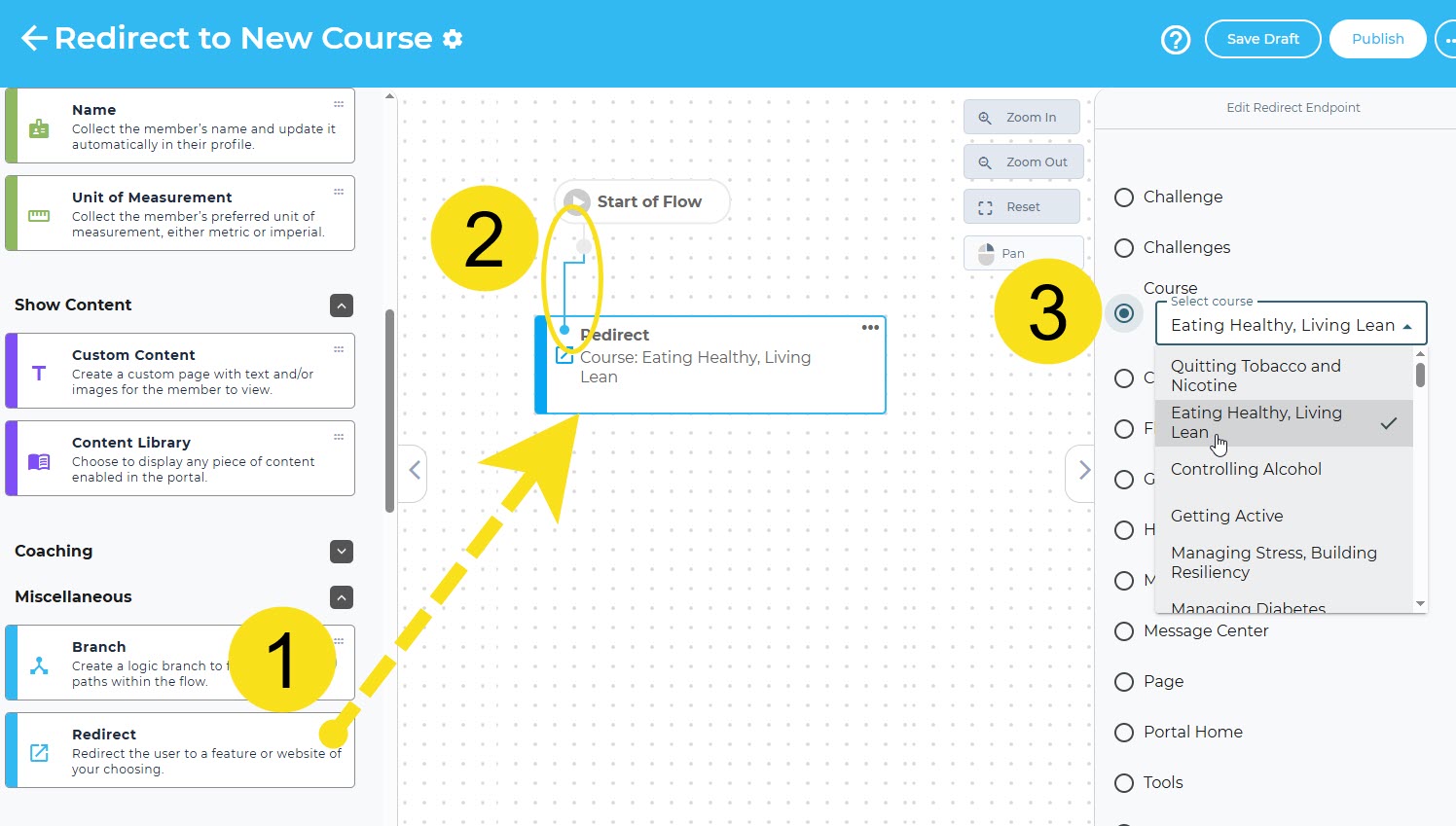
- Drag and drop the Redirect component into the editor field
- Connect the start tile and redirect tile (or any previous tile, if you've created others)
- Select "Course" from the redirect options, then choose the specific course
Now publish the flow (upper right corner) and you can assign it to users as a To-Do.
Assigning the Course Redirect Flow to a User
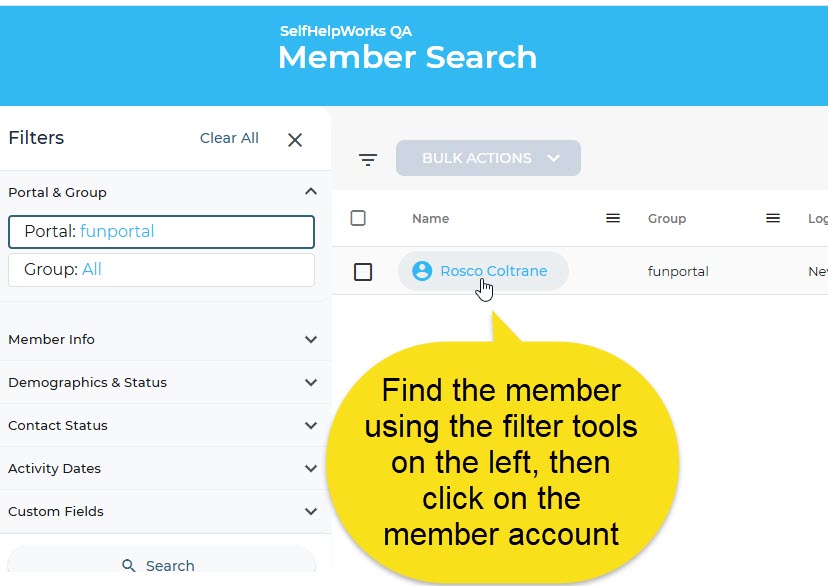
Go to the Members section of the admin and find the user:
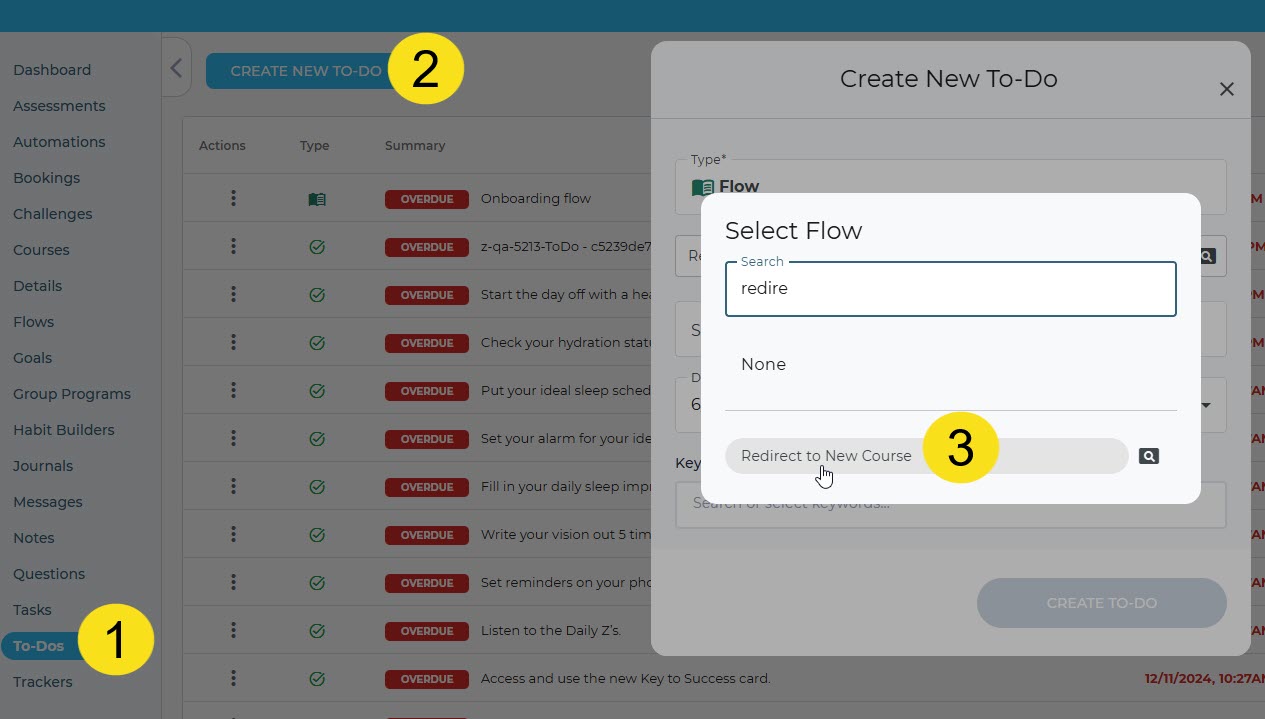
Now you can go to the member's to-do section and assign the flow:
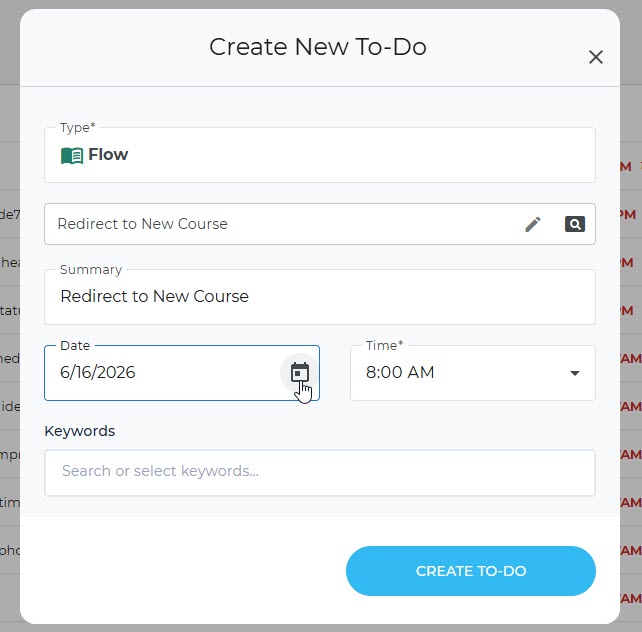
Set the time and date for the to-do and click on CREATE TO-DO:
Was this article helpful?
That’s Great!
Thank you for your feedback
Sorry! We couldn't be helpful
Thank you for your feedback
Feedback sent
We appreciate your effort and will try to fix the article