This article explains how admins with the Coach role manage their group programs from the coaching dashboard. To learn how to create a program, see Creating and Customizing a Group Program.
Opening Group Coaching Management
- Go to the coaching dashboard.
- Click Open Group Coaching Management.

Now you can view all the group programs you are managing. In the example below, we have two programs currently running:

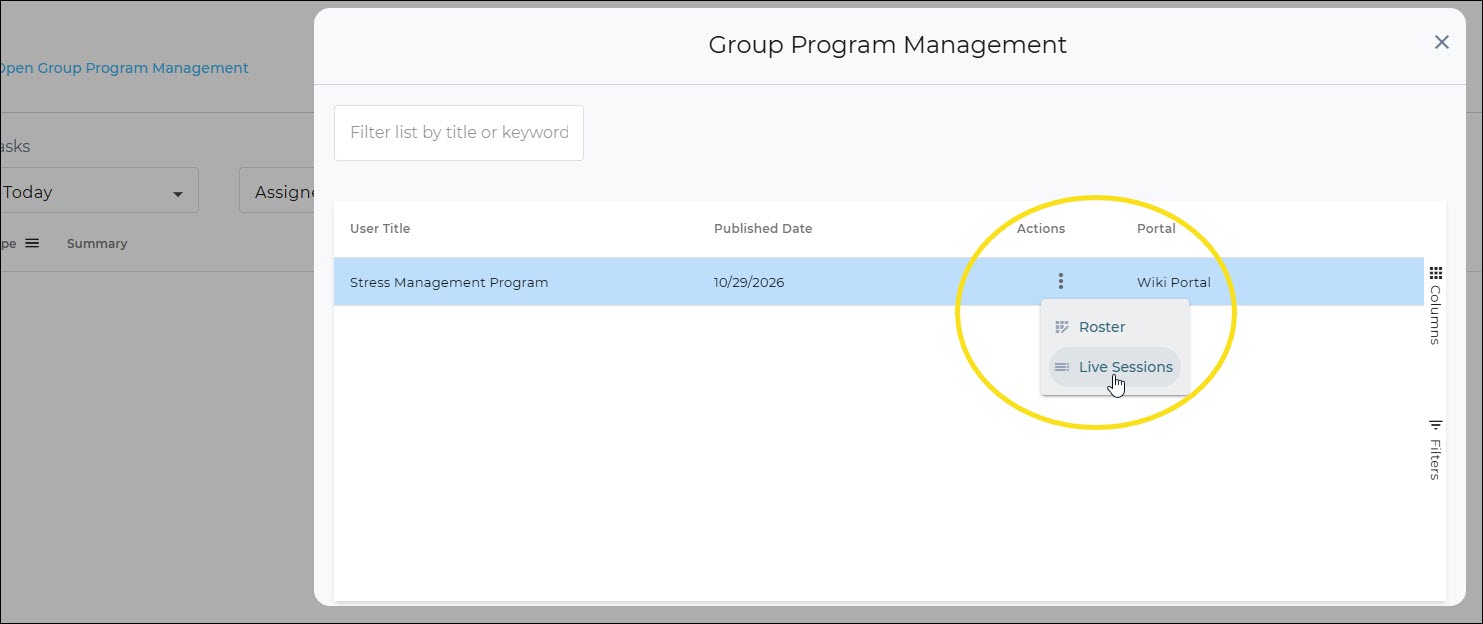
By clicking on the actions menu for the row of the program we want to manage, we can view the program's roster of participants OR we can view/edit details related to the program's live sessions.
Roster Management
The roster lists the participants registered for the program. From here you can:
- Filter by cohort to see only the members in a specific group
- Unregister a participant
- Send an email or SMS to a participant
- Send bulk messages by checking the boxes next to multiple participants and sending a single message

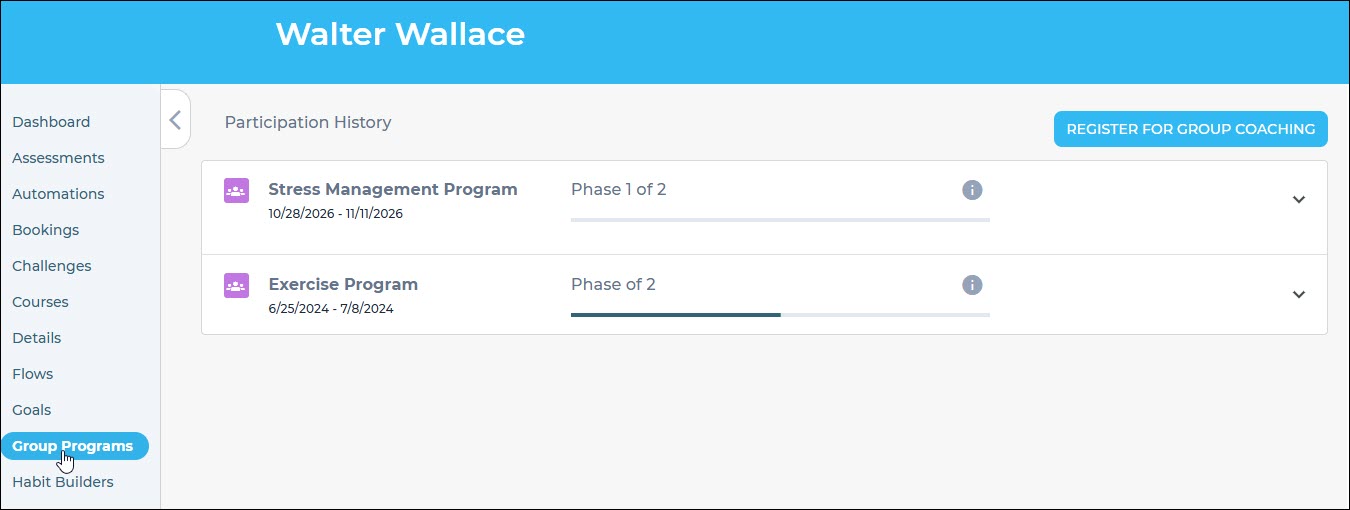
Note: The roster shows who is currently registered. It does not keep a history of registrations and unregistrations. To check an individual member’s status, open their profile and go to the Group Programs tab.
Viewing Live Session Details & Tracking Attendance
Coaches mark attendance for each live session from the live session management view. First., open the program's Live Sessions from the actions menu.
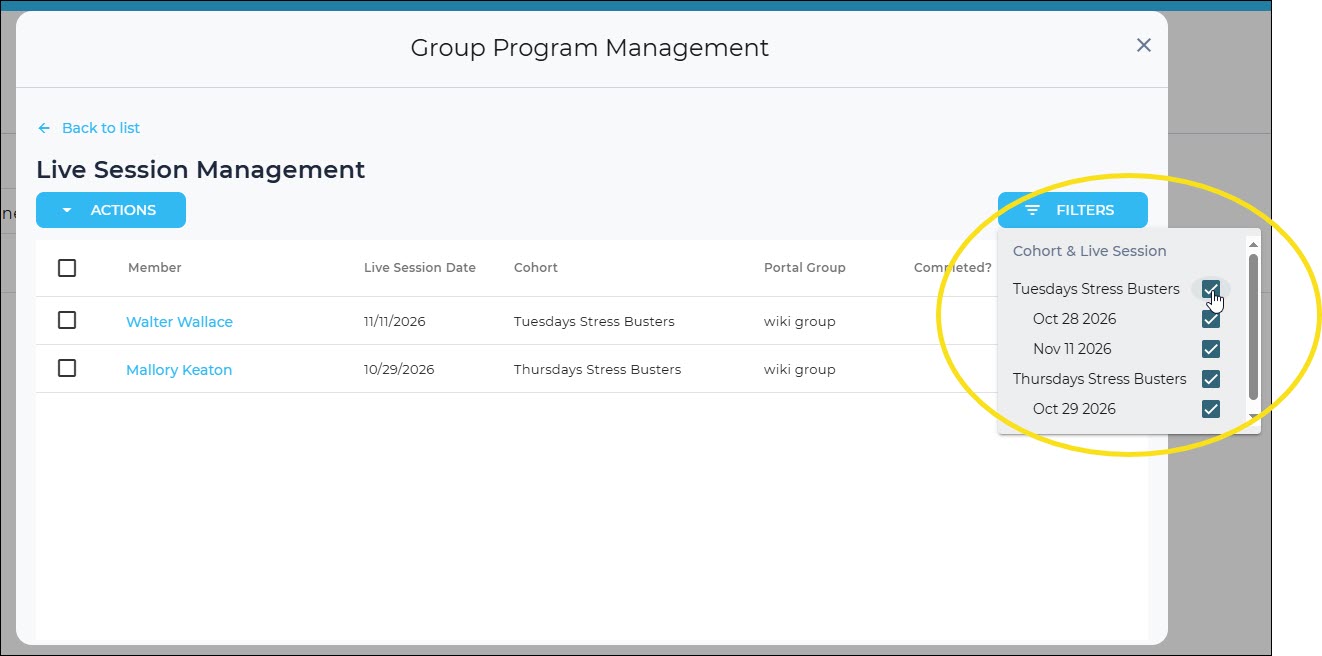
Filter to the cohort and session you want.
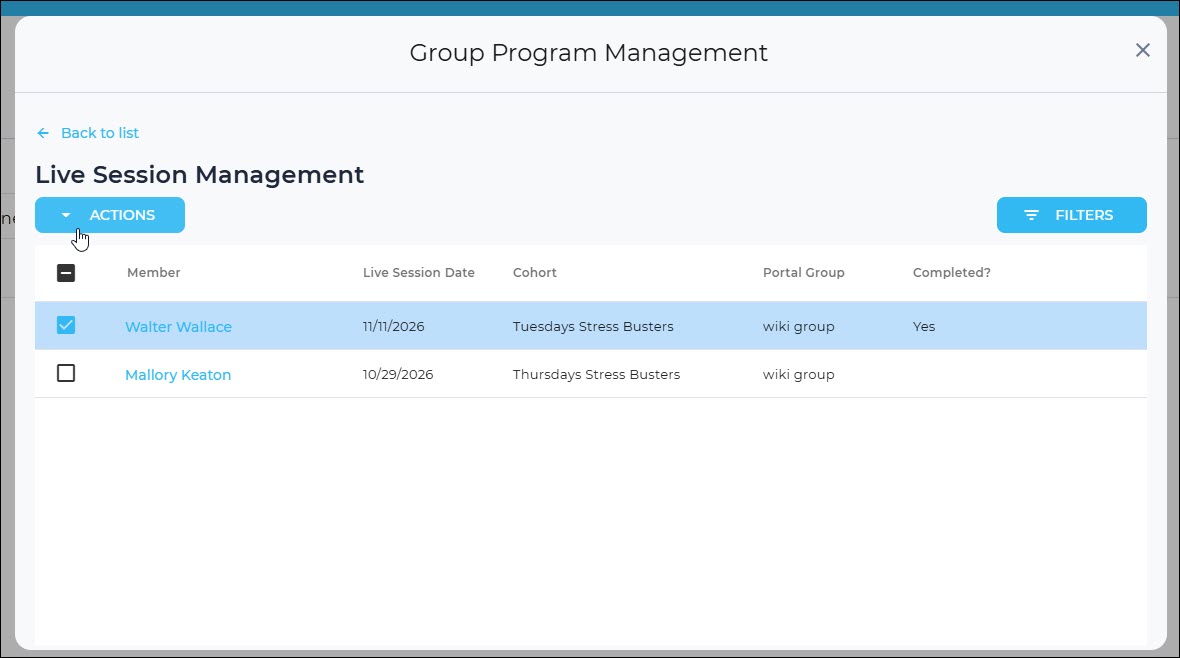
And mark each participant’s attendance.
Changing attendance later
You can change a participant’s status between complete and incomplete, for example if the wrong status was selected or a member completes a follow-up activity to earn credit. Changes can be made until the program’s Activity End Date. After that, statuses are locked.
Was this article helpful?
That’s Great!
Thank you for your feedback
Sorry! We couldn't be helpful
Thank you for your feedback
Feedback sent
We appreciate your effort and will try to fix the article