This article covers how to create and configure a Group Program from the Portal Management settings. For information on managing active programs from the coaching dashboard, see this article. For a general overview of the Group Programs feature, see this article.
Getting There
To access the Group Programs management tool:
- In the admin website, go to Settings
- Enter the Portal Management module
- Select the portal you want to manage
- Under the Coaching section on the left menu, click Group Programs

You are now on the main Group Programs management page. Any programs that have been drafted or published for the portal will be listed in the table here.
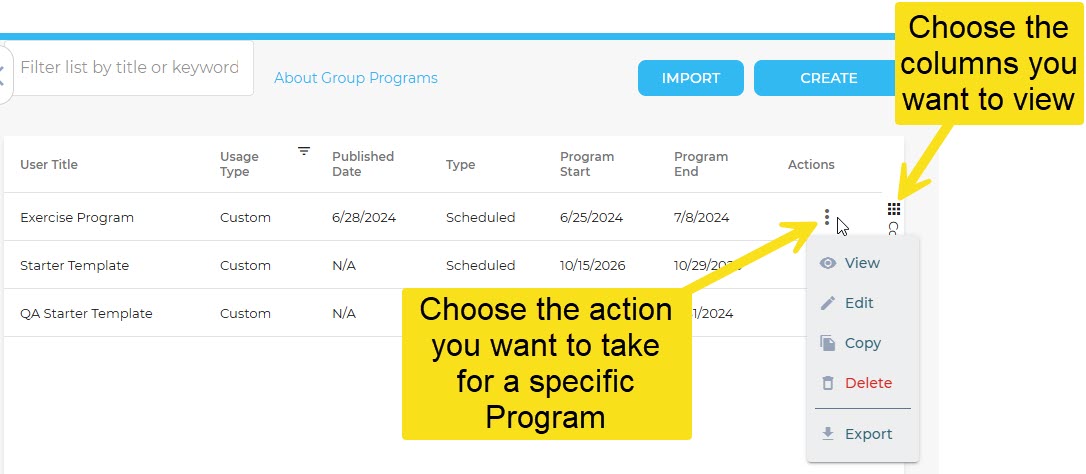
To the right of the table, you can choose the columns that you want to view and you can set filters. By default, the table displays the following for each program:
- User Title — what members see when they view the program
- Published Date — the date of the most recent published version
- Usage Type — either Custom (listed as a singular program) or Template (appears in the program catalog for reuse)
- Type — either Scheduled or On-Demand
- Program Start and End Dates
- Actions menu — options to View, Edit, Copy, Delete, Export, or exportthe program. Exporting is useful for importing a program into another portal without having to recreate it from scratch.
Creating a Group Program
Let's create a group program, going step by step.
First, click on the CREATE button above the table (the IMPORT button can be used to upload Group Program files that have been exported). This opens the catalog window, which lists any templates that exist for the portal. If no custom templates have been created, the only option shown will be the Starter Template.
To begin creating a new program, click on the Starter Template tile, then click on START FROM TEMPLATE button. For the purposes of this article, we are not checking the Template box, but if you want to create a template that will be listed in the catalog henceforth, check the box.

Properties
Once inside the creation tool, all configurable elements of the program are listed on the left under the PROPERTIES menu. We’ll walk through each section below.

General
The General section is where you define the program’s titles, summaries, descriptions, keywords, and thumbnail image — in both User-facing and Admin-facing versions.
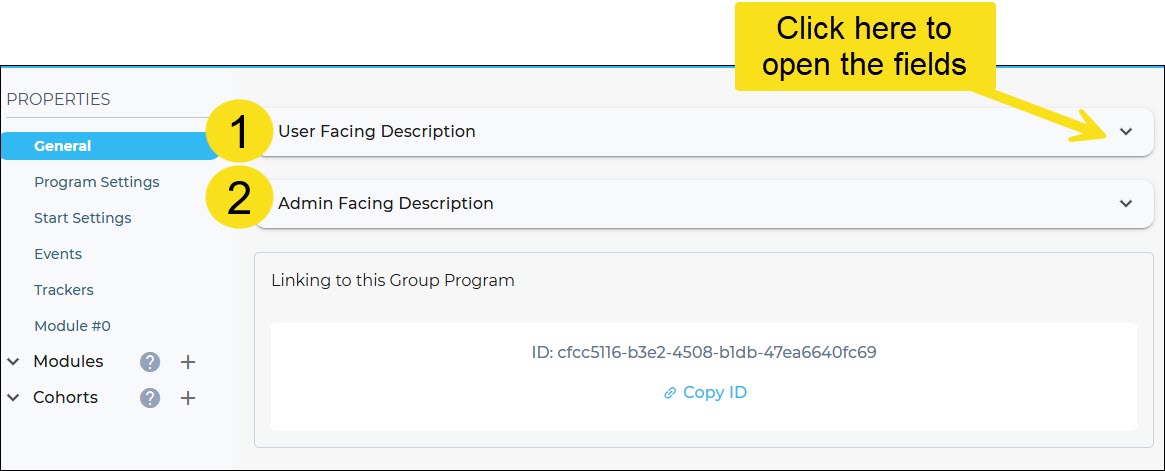
- The User Facing settings are what members/participants will see from their portal.
- The Admin Facing settings are what admins will see in the admin website for organizational and identification purposes.
Let's create a program for stress management so you can see an example of how the titles and summaries differ between User and Admin Facing:
User Facing (what the member sees)

Admin Facing (for internal use)

Beneath these settings, you can fill in keywords and add a thumbnail image.
Program Settings
This section is where you define how the program will marked as complete and how members will be able to complete activities. The screenshot below has the settings filled out, but you can select the settings for your program as you see fit.
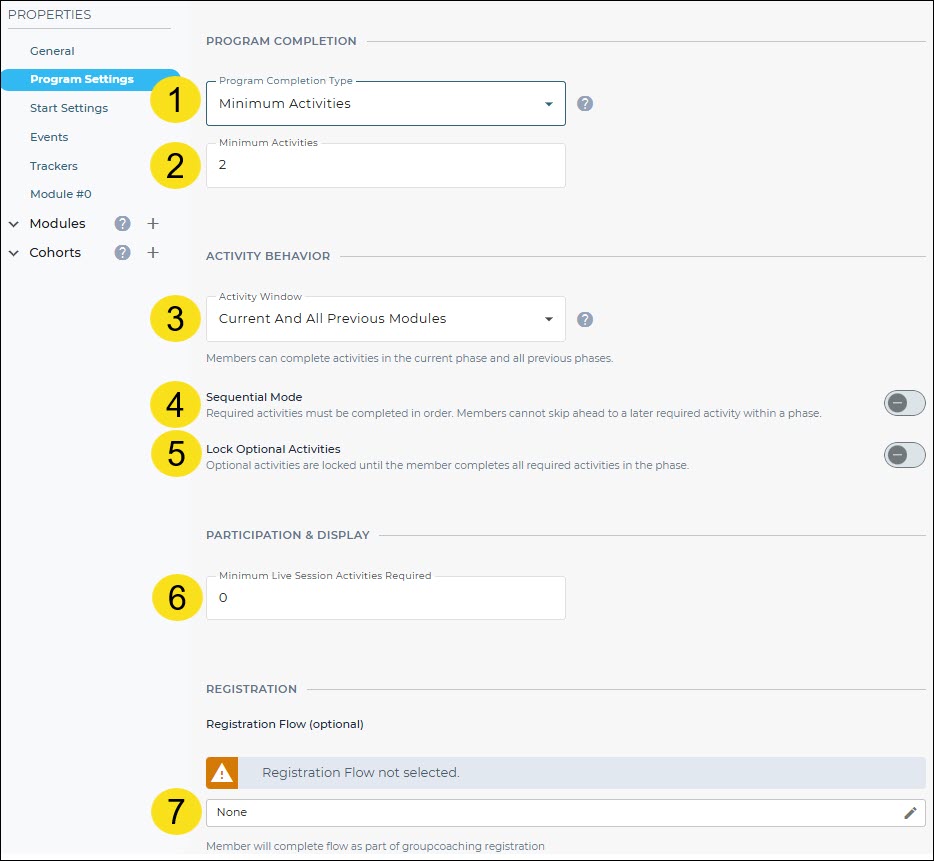
- Choose the Program Completion Type from one of the three options:
- Minimum Activities—The program is completed when the preset minimum amount of activities are completed. (Completion of any activity counts towards the member’s total.)
- Minimum Required Activities—A minimum amount of required activities must be completed. Only completion of activities marked required will count towards the member’s total.
- Minimum Modules—The program is completed when the preset minimum amount of modules are completed.
- Set the minimum number of activities, required activities, or modules that, once completed, mark the program’s successful end.
- ACTIVITY BEHAVIOR: Choose the Activity Window from one three options:
- Current Module Only—The member can only complete activities in the current module.
- Current and Previous Module—The member can complete activities in the current module and the immediately preceding one.
- Current and All Previous Modules—The member can complete activities in the current module and any/all prior ones.
- When toggled on, Sequential Mode makes it so activities must be completed in their assigned order.
- When toggled on, optional activities can only be completed once all required activities are completed.
- The number entered here represents the number of live activities a member must attend in to complete the program.
- Choose the registration flow if you are using one. Note that Group Programs require the member/participant to register and a registration flow can be sent to engage and register the member either through messaging or by including it on a page/to-do in their portal.
Start Settings
In this section, you will set the parameters for registration and program start and end dates.

- Registration Start Date: Members will be able to register for the program from their portal on this date.
- Registration End Date: This is the final day of registration.
- Program Start Date: This is the day the program starts. You can set this date before, after, or on the same day as the registration end date.
- Program End Date: This is the end of the program when members will no longer be able to update activities (this is auto-filled based on the start date and the number of modules in the program; each module is set as default to 1 week long, so if the program is 2 modules, the end date will be 2 weeks after the start date; however, if you change the duration of the modules, then the start date will automatically be updated).
- Activity End Date: This is the date when admins and devices/apps will no longer be able to update activities or data.
- Program Archive Date: This is when the program is erased from member portals.
Events
Events allow you to set automated actions that trigger at key points in the program lifecycle. There are four event triggers:
- When a member registers — e.g., a welcome email to help the member prepare
- When a registration is cancelled — e.g., a re-engagement email and a coach task to follow up
- When a module starts or ends — e.g., a post-assessment flow sent at the end of a specific module. You can set the automation to trigger a set number of days before or after the event.
- When the program is completed — e.g., a congratulations email or a new homepage assignment
Here is an example: If you select the event option "Module Starting," you will can set the Automation Settings for the first module, 0 days; this will send the communications you set at this scheduled time for the scheduled program. You can add components to the At Start day, which means the components you add here are set to trigger right when the event happens. You can click “Add Day” to set more components to occur at days and times after the initial occurrence of the event.
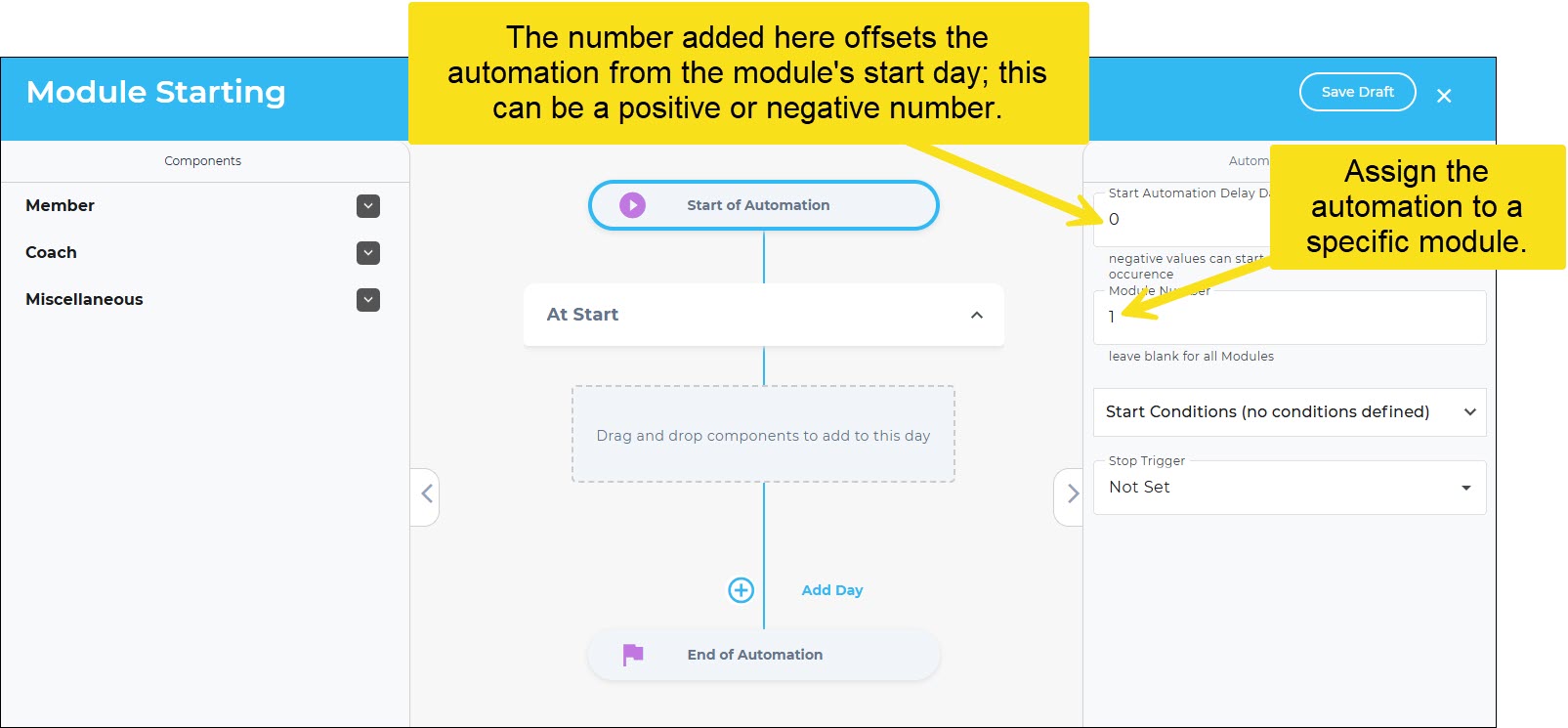
In the image below, you can see that the automation will assign the member a goal and send an email immediately after the program's first module starts. Then, a eight days later at 8 a.m., another email will be sent.
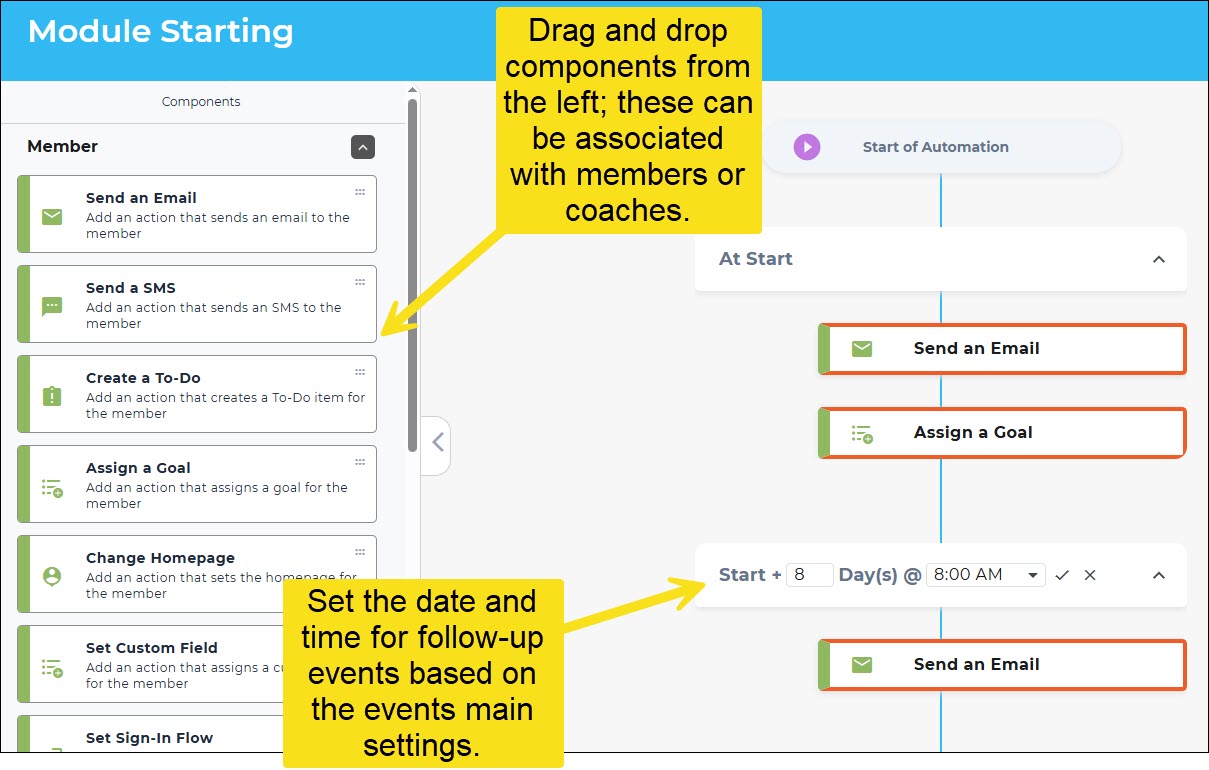
Member Components available for use in Event automations
- Send Email will automatically send an email.
- Send SMS will automatically send a text.
- Create To-Do will automatically populate the member’s to-do tile on their homepage
- Assign goal will automatically populate the member’s goal tile on their homepage.
- Change Homepage will automatically set the selected homepage for the member’s portal.
- Set Custom Field will fill in the selected field for the member’s account.
- Set Sign-In Flow will set a flow that the member will be presented with for completion the next time they sign in.
- Trigger Recommendation Rule can be used to publish a recommendation rule for the member.
- Change Portal Group will assign the member to a specific group.
- Send a Push Notification will send a push notification to the member.
- Set Member Attribute modify a member's attribute.
Coaching Components
- Create a Coach Task will automatically create the selected task for a coach.
- Change Lead Coach will set the lead coach for the member.
Trackers
In this section you can add any trackers you’ll need for the program. There are two ways to select and add trackers:

- The “Add portal tracker” lets you choose from any trackers that are currently enabled for the portal.
- The “Add new tracker” button enables you to create a tracker that will be accessible exclusively for this program. (See how to create a new tracker.)
Modules
Modules are the core building blocks of a Group Program: each one represents a time-based phase of the program, typically, for example, one week long. You can add or remove modules as needed to build out your program. For the program to save and publish, all modules must contain at least one activity (live sessions do not count).
Module #0 is a special pre-program module that is disabled by default. If enabled, it allows you to engage registered members before the official program start date with content, activities, and custom pages.
Creating a Module
By default, when you start from the starter template, there will be two modules set up, but you can add or subtract as you see fit.
At the top of the module creation page, there are two sections:
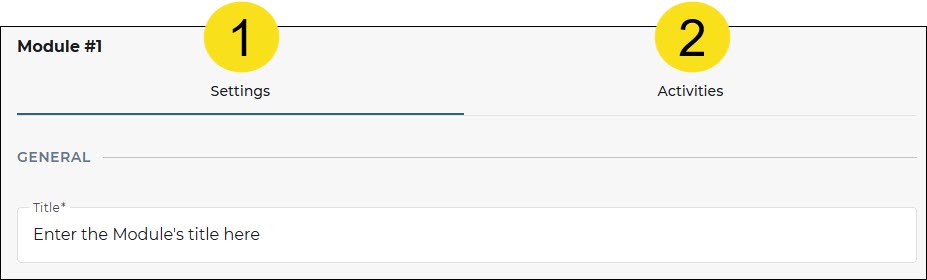
- The Module Settings, which includes the title, summary, duration, and phase (module) completion type.
- The Activities that are a part of the module.
Module Settings
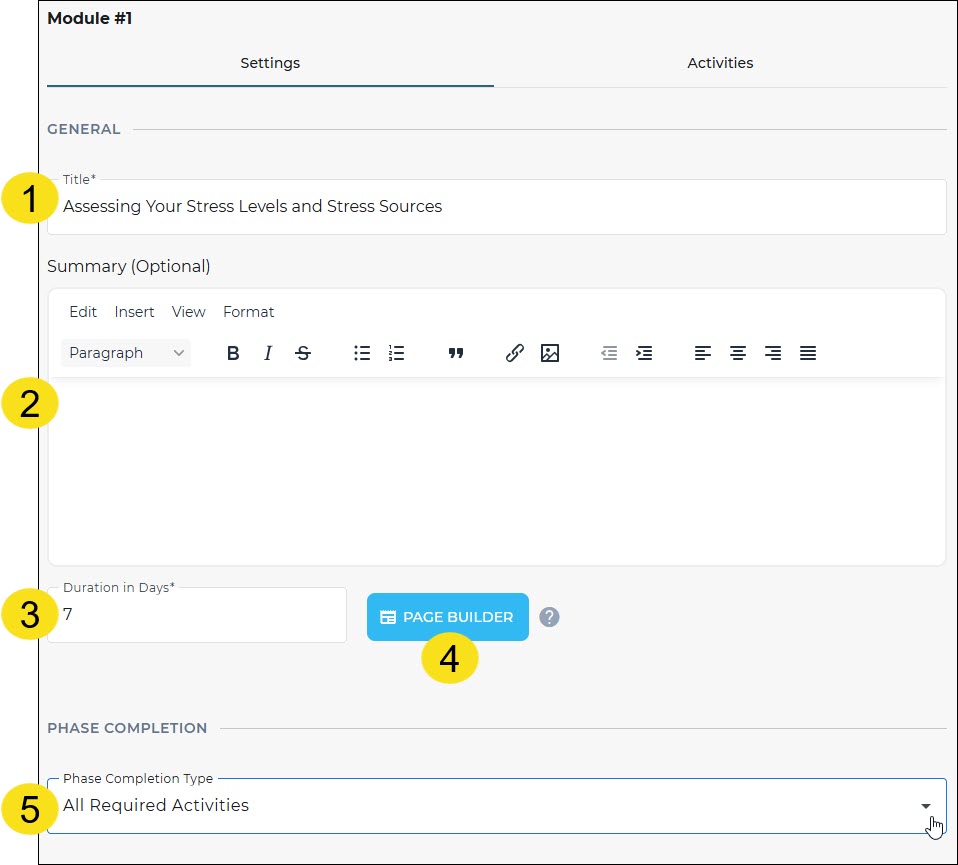
- This is the module title.
- This is the module summary to give members context.
- This is the duration of the module (module durations are automatically added up to create the "program end date" as described above).
- You can create and include pages that will appear beneath the main program content and provide optional supplemental content and/or tools for the participant to explore.
- This is the module completion type, which you can set as one of the following:
- Minimum activities—The participant completes the module when the minimum number of activities are completed (set the number of activities beneath this field).
- All required activities—The participant completes the module when all required activities are completed.
- All required plus minimum optional activities—The participant completes the module when all the required activities and the minimum number of optional activities are completed.
Setting Activities for the Module
Now we are ready to set the activities for the module. Activities are added one at a time and can be chosen from the dropdown field as any of the following:
- Read an article
- Watch a video
- Listen to audio
- General (an instruction written out in the text field)
- Complete a flow
- Fill out tracker
- Complete a Course (or a certain, selected portion of a course)
For any activity involving a piece of content, you can select the content from the dropdown after you've selected the type. For instance, if you select "Read an article," you can then choose the article from any that are enabled in the portal.
In the example below, we've set a required flow activity and an optional activity to complete two sessions of a stress management course.
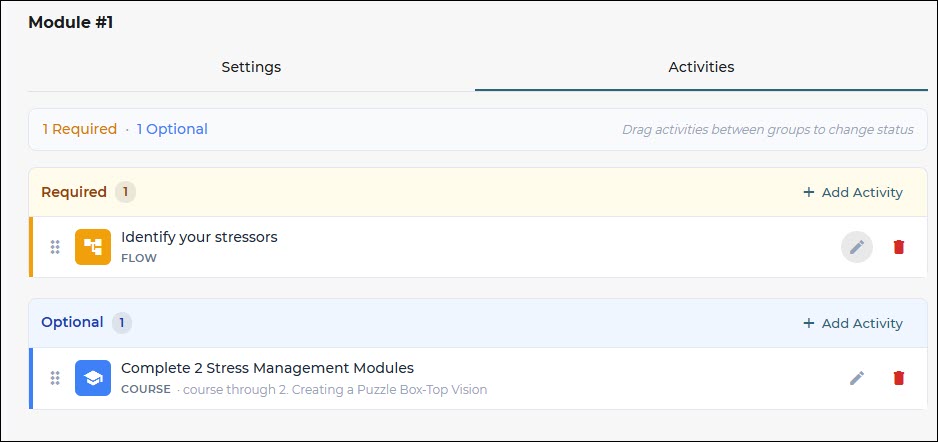
Note on using trackers: When setting a tracker activity, you can set the completion requirements as:
- Minimum entries—The minimum number of entries during the module to be marked as complete.
- Streak—Entries added for consecutive days (for instance, if this is marked as 2, then the participant must put in an entry for at least 2 consecutive days during the module).
- Threshold—Meeting or exceeding a certain cumulative value (for instance, a walking tracker may have a threshold of 30k steps during a module).
- Threshold Streak—Meeting or exceeding a threshold for a certain number of days in a row (for instance, a walking tracker may have a threshold streak of 10k steps, 3 days a week, during a module).
After you've set all activities, you are done creating the module.
Cohorts
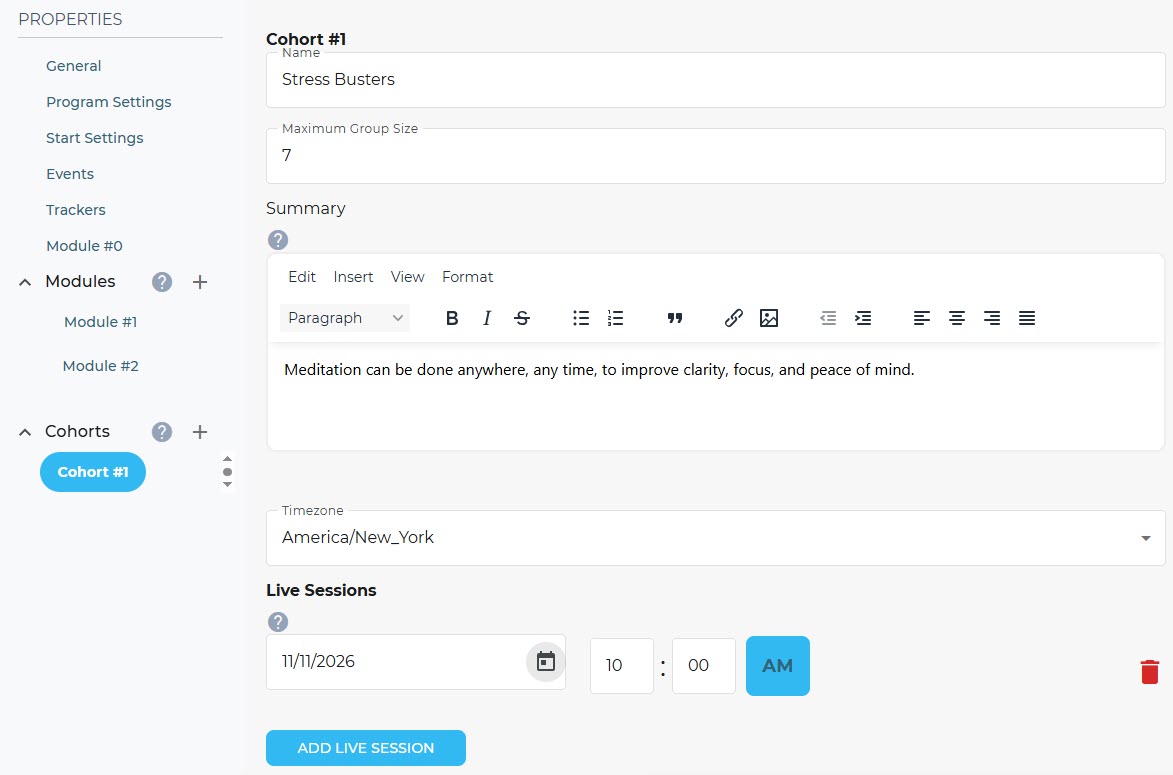
A cohort is a group of members that participate in live sessions together. You might create one cohort that meets on Tuesdays, for instance, with one group of participants; then you might create another cohort that meets on Thursdays with another group of participants. Programs must have at least one cohort but may have more; when a participant registers for the program, they choose their cohort from any that are available.
Cohorts are defined with the following:
- Name of the Cohort
- Max participants—The maximum number of participants allowed in the cohort
- Summary—A short description of the cohort
- Timezone—The default timezone for the cohort and the time in which live sessions are based on
- Live Sessions—A list of live sessions that are scheduled for the cohort during the program and listed as activities
Here is an example of a cohort playfully called "Stress Busters" who have a max membership of 7 and one live session planned:
Publishing the Program
When you have configured all settings and are ready to make the program available, click Save Draft and Publish. Once published, the program will be accessible to members in the portal according to the registration and start dates you set.
Important: Once a program has been published and the registration window has opened, changes to the program's structure can not be made. You can still edit summaries and descriptions, but the time parameters and activities are set.
Was this article helpful?
That’s Great!
Thank you for your feedback
Sorry! We couldn't be helpful
Thank you for your feedback
Feedback sent
We appreciate your effort and will try to fix the article