The Notes tool allows admins and coaches with the Manage Member role to create, maintain, and review notes on individual member records. Notes are date-stamped and retain a full edit history, making them a reliable log of coaching activity and member-specific information.
Notes are strictly internal, so members cannot view notes or contribute to them.
Accessing the Notes Tool
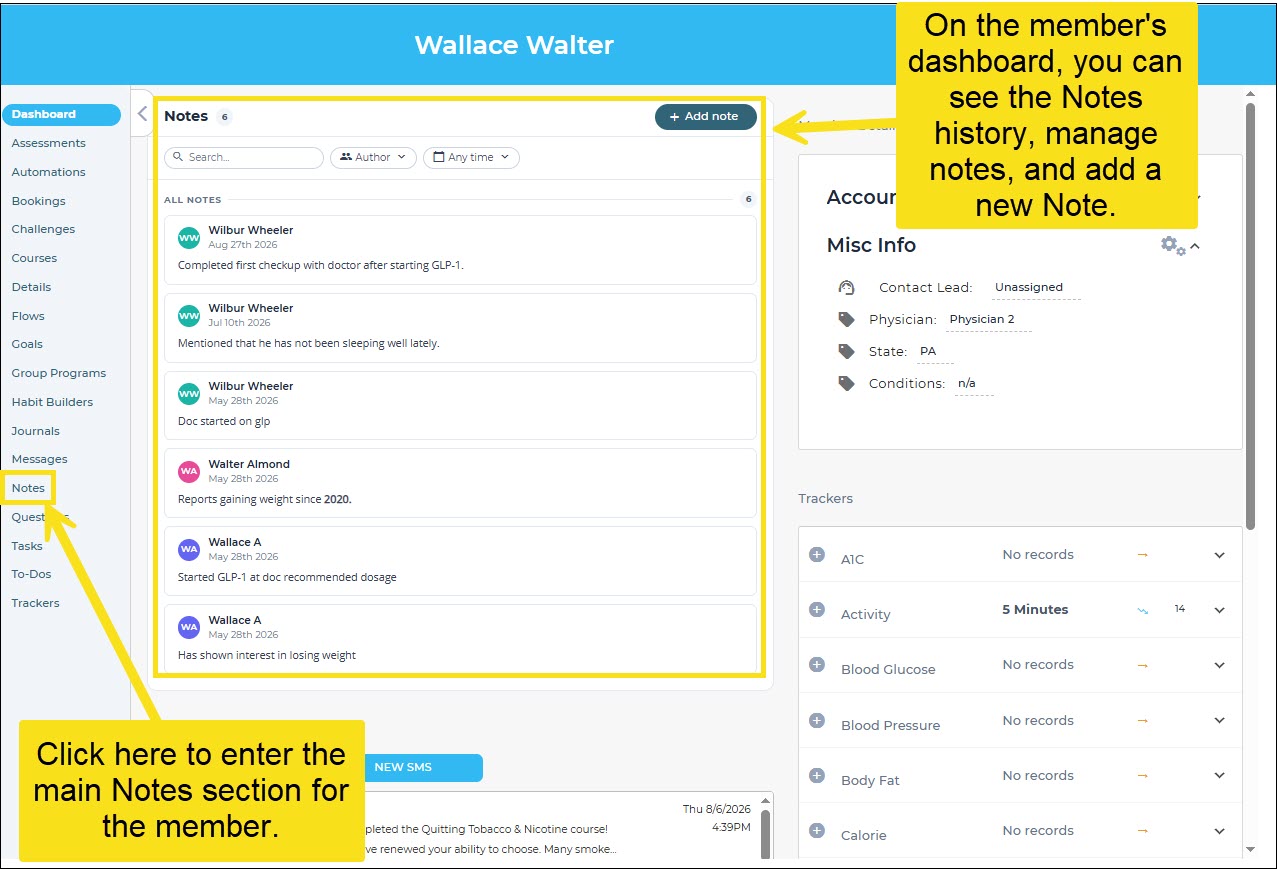
You can find the Notes tool by going to a member's dashboard where it appears as the main component in the top-left space. Here, you have all basic functionality, including the ability to add new notes and review and manage existing notes. To fully focus on creating or managing notes for a member, click on Notes in the left-hand menu.
Creating and Managing Notes
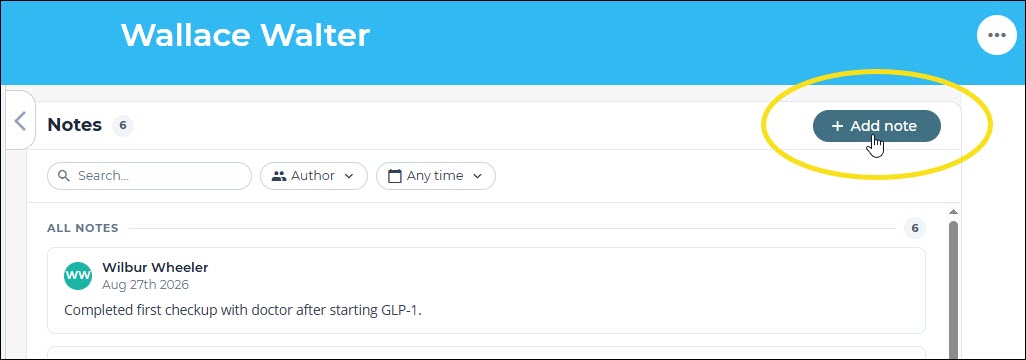
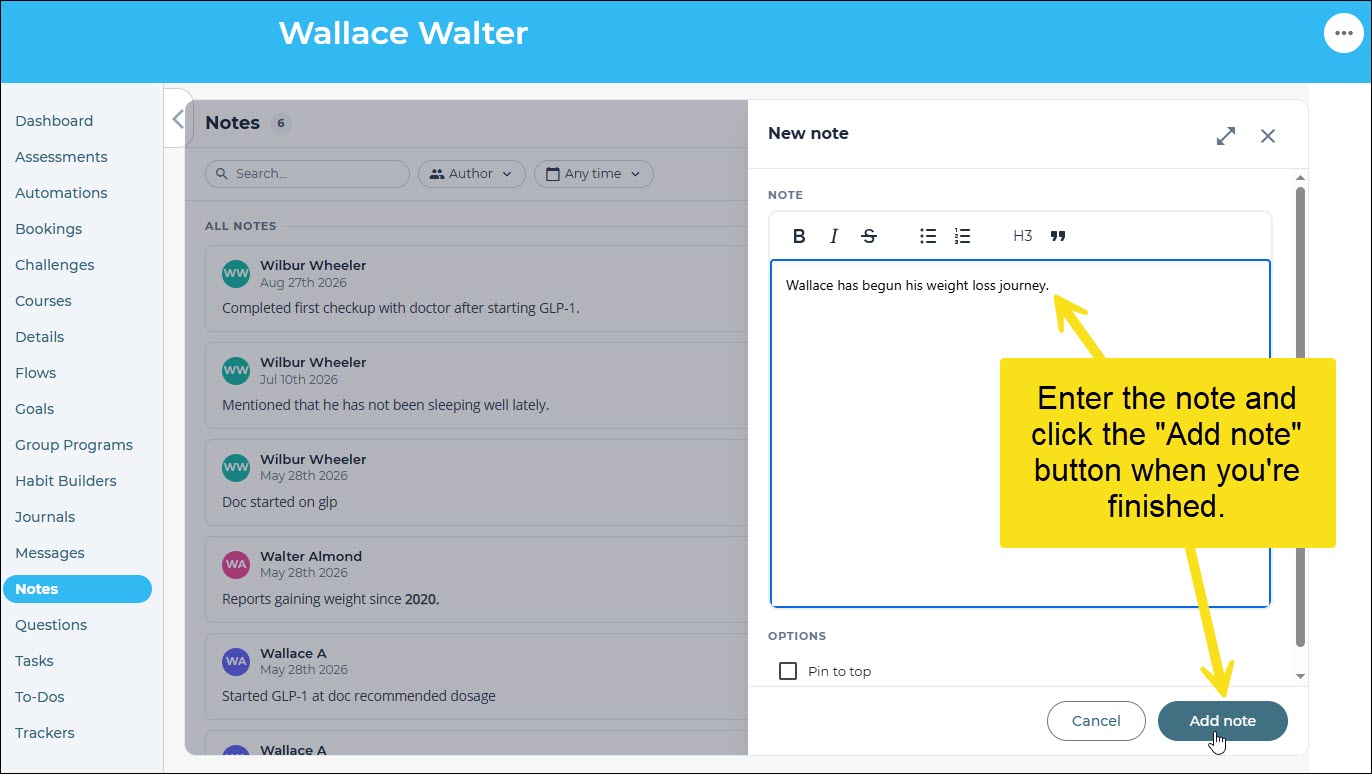
To add a note, navigate to either the dashboard notes component or the dedicated Notes section and click "Add note." In the main notes section, this will open the editor from the right with the option to expand in the upper-right corner (when opening from the dashboard, the editor automatically takes over the full Notes component section).
Managing Notes & Adding External Files
Once a note has been created, you can:
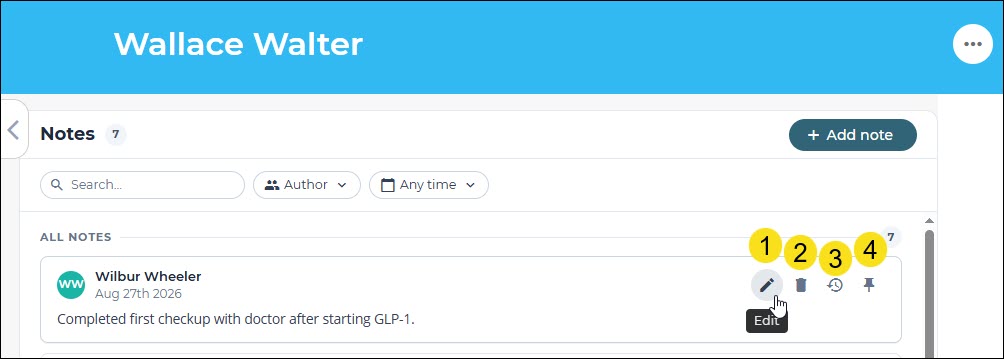
- Edit or update the note at any time. All changes are tracked and the full edit history is retained.
- Delete the note if it is no longer needed.
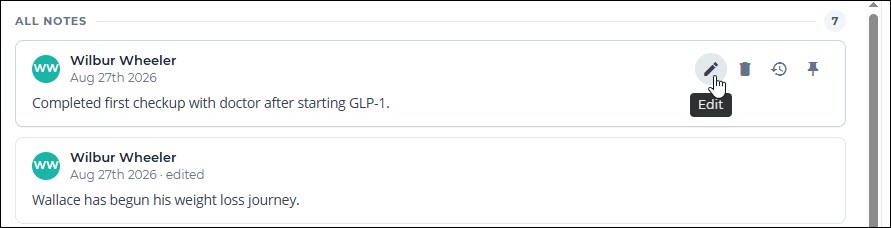
- View History of the note, showing who has authored and/or edited individual notes, and when.
- Pin a note to the top of the log so it appears first whenever you access the member's record; this is useful for flagging important information you want automatically visible each time.
After a note is created, you can attach external files for additional documentation. This can only be done AFTER a note has been created, not during original creation. To add a file, click on the relevant note's edit icon and scroll to the bottom of the editor where you will see the attachment loading box:
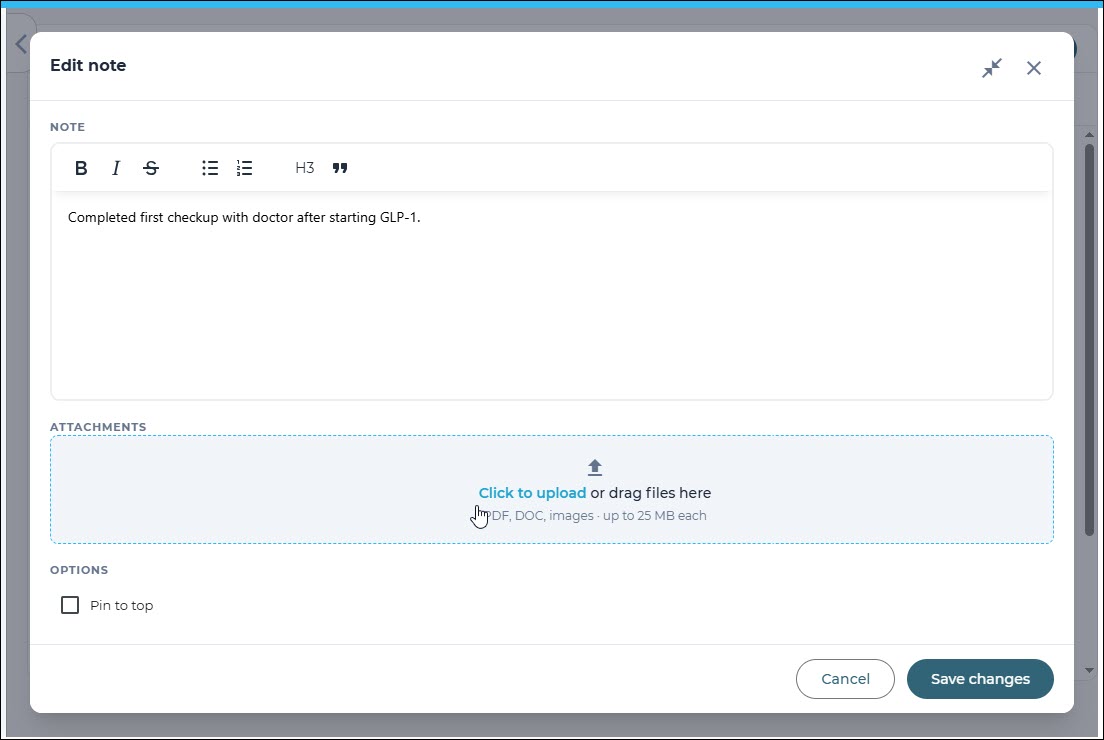
Supported file types include:
- PDF — previews inline
- Images (PNG, JPG) — preview inline
- DOCX — downloads for viewing
All attachments are automatically scanned for malware before they become visible to anyone other than the uploader. This ensures nothing is added to a member record without a security check first.
Was this article helpful?
That’s Great!
Thank you for your feedback
Sorry! We couldn't be helpful
Thank you for your feedback
Feedback sent
We appreciate your effort and will try to fix the article